Installation Guide (2026)

Netmirror is not on the Play Store, so you must "sideload" it. Select your device below for easy instructions.

🔥 Amazon Firestick

For Fire TV Stick 4K, Cube, & Lite

This is the most popular way to watch Netmirror on your TV.

  1. Get Downloader: From your Home Screen, go to Find > Search. Type "Downloader" and install the orange app by AFTVnews.
  2. Enable Permissions: Go to Settings > My Fire TV > Developer Options. Turn ON "Install Unknown Apps" for Downloader.
    Don't see Developer Options? Click "About" -> "Fire TV Stick" 7 times fast.
  3. Download: Open Downloader. In the URL box, type: netmirror-apk.com
  4. Install: The file will download automatically. Click "Install" when prompted.
  5. Cleanup: Click "Done" (not Open). Then click "Delete" to remove the APK file and save storage space.
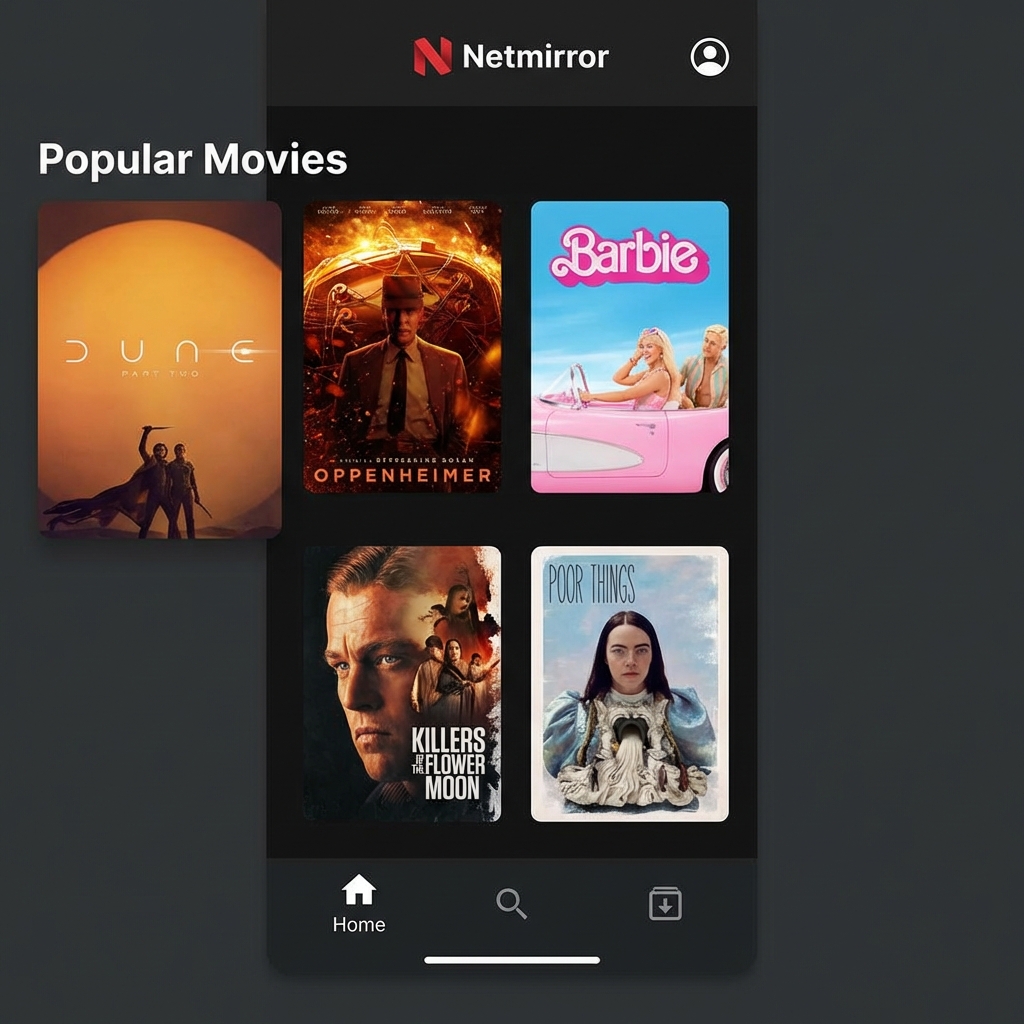
Firestick UI

📱 Android Phone

For Samsung, Pixel, OnePlus, Xiaomi

Install Netmirror directly from your Chrome browser.

  1. Download: Open Chrome and go to netmirror-apk.com/download. Click the big Download button.
  2. Security Prompt: Chrome may ask for permission to install apps. Click "Settings" and toggle "Allow from this source".
  3. Install: Tap the downloaded file in your Notification shade or Downloads folder. Tap "Install".
  4. Launch: Open the app. You may need to "Allow Access to Storage" so the app can save subtitles and updates.

Troubleshooting

App Not Installed?

You likely have an older version of Netmirror (or a differnet fork) installed. Uninstall it completely first. Also check if you have at least 100MB free space.

Parse Error?

This means the download was corrupted. Delete the file and download it again. Also, ensure your device is running Android 5.0 or higher.

Blocked by Play Protect?

Google Play Protect may flag apps not on the Play Store. Click "More Details" -> "Install Anyway". The app is safe.
Download Latest APK